
 FrameOS
Editing apps
Every node on a scene is an app - built in, or JavaScript you can fork and edit.
Every blue and green node on a scene is an app: a small program with typed config fields, an optional image output, and access to the scene's state. FrameOS ships with ~40 built-in apps, and you can edit or write your own.
What's in the box, roughly:
- Data: clocks, iCal calendars and agendas, weather, Home Assistant sensors, waste-collection schedules, JSON/XML parsing, HTTP downloads.
- Images: photo galleries, albums from the Photos library, Unsplash, Wikimedia Commons, Immich, Google Photos, images from any URL, files off the frame's own SD card, OpenAI image generation, RTSP camera snapshots, headless Chromium screenshots.
- Render: text, QR codes, calendars, charts, SVG, gradients and color fills, opacity, split layouts, zoom/pan (Ken Burns), resize and rotate.
- Logic: if/else, set state, log, sleep control.
Self-hosted backend, FrameOS Cloud and standalone frames
JavaScript apps can be written and edited in the self-hosted backend, in FrameOS Cloud and on a standalone frame's admin page alike.
Edit any app
Click the pencil on a JavaScript app's node (or Edit App in its … menu) to open its source in a window over the scene. JavaScript apps are editable everywhere, the scene store's editor included - saved changes are forked onto that scene, leaving the original untouched.
Many of the apps that fetch photos and data are JavaScript apps that travel inside the scene, so they change without a firmware release and you can fork them like your own: FrameOS Gallery, Unsplash, Wikimedia Commons, Google Photos, Immich, OpenAI Image and Text, Home Assistant Sensor, Weather (Open-Meteo), the Belgian recycling calendar, Chart, Calendar, iCal to Events, Photo album and Events to Agenda. The rest are built into FrameOS: their source opens read only, with an Open in GitHub link; to customize one, write a JavaScript app or an inline code node instead.

An app declares what it touches on the frame (permissions), and the scene shows it before you install. Still, read the source before installing scenes or apps from strangers.
JavaScript apps
This is the normal way to write an app. They run on the frame inside an embedded
QuickJS runtime - FrameOS's own fork,
quickts, which parses TypeScript and JSX natively,
so errors name your own file and line. No Node.js needed on the device, and no
compiler, so your change is live on the frame seconds after you save it. Create one from the code
templates (text, logic, SVG, or image), define its fields in config.json, and export plain
functions:
export function init(app: FrameOSApp): void {
  app.initialized = true
}

export function get(app: FrameOSApp, context: FrameOSContext): string {
  return `${app.config.prefix}: ${app.config.message}`
}
JS apps can fetch data with frameos.fetchText(), frameos.fetchJson() and
frameos.httpRequest() - headers, methods and bodies, plus a find option that pulls snippets
out of a page too big to parse on a microcontroller - and photos with frameos.fetchImage(),
which downloads and decodes natively, straight into the canvas on an ESP32, so the pixels never
enter the JavaScript heap. They return text, JSON, SVG markup, or images, and plug
into scenes exactly like the built-in ones. They work on every kind of frame, and they're the
only option on ESP32 and Pico boards.
Text too big for the heap - a 6 MB calendar feed - is read a line at a time. Give the field
"capabilities": { "byteIter": {} } in config.json and the download stays on disk; then
frameos.openLines() and frameos.nextLine() read it through one 8 KB window, keeping only
the lines you ask for, and frameos.nextBlock() hands over a whole record at once:
const lines = frameos.openLines(app.config.feed, { unfold: true, only: ['BEGIN:VEVENT', 'SUMMARY'] })
let line
while ((line = frameos.nextLine(lines)) !== null) {
  if (line.startsWith('BEGIN:VEVENT')) {
    const record = frameos.nextBlock(lines, 'END:VEVENT')
  }
}
That's how iCal to Events reads a real calendar in under 1 MB of heap. frameos.timeZone()
gives an app a zone's offsets, for wall-clock arithmetic in any zone.
An app can hear the frame's events without an event node: name them under events in its
config.json ("*" for all of them but finger motion) and export onEvent. Return true to
draw the scene again:
export function onEvent(app, context) {
  if (context.event === 'button') frameos.setState('presses', (app.state.presses || 0) + 1)
  return true
}
frameos.dispatch(event, payload) goes the other way and sends an event, as a dispatch node does.
An app that returns an image should size it by the canvas it's handed - context.imageWidth and
imageHeight, already turned with the frame - never by the panel. When the picture's destination
is known (a cell of a split, say), context.targetWidth, targetHeight and targetFit give its
size and placement too. That's how the FrameOS Gallery app asks
gallery.frameos.net for the picture already scaled to fit, as a JPEG 5 to 20 times smaller than
the original; its Image format field brings back PNG or the untouched original.
Where an app keeps its values matters on an ESP32, which lets an app's interpreter go when memory
runs short - before a big image decode, or after every render on a frame that deep-sleeps. Then
module-level variables are gone and init() runs again before the next render. (A frame that
stays awake keeps its interpreters between renders while memory allows.) Keep
values the scene shares in its state (frameos.setState()), and private ones with
frameos.remember(key, value) / frameos.recall(key), which survive between renders everywhere.
The browser preview behaves like an ESP32 when its memory limit is set to an ESP32
board, so the difference shows up before you deploy.
console.log() (and info, warn, error) writes to the frame's log. A get() that throws
fails its node the way a built-in app does: the message is painted where the image would be, and
nothing is cached. A file named <name>.test.ts among an app's sources is a test: the editor runs
it in the same interpreter the app runs in, with describe, it, expect and mocks, and
anything that would leave the interpreter fails until the test mocks it. Test files never reach
an ESP32. An app's config.json opens as a form - fields, outputs, settings, cache -
with Source one click away.
An app can be more than one file. Its files are its whole module graph: app.ts can
import { layout } from './helper' and import cities from './data.json', and the editor
resolves those siblings as you type. Relative imports only - there is no npm on the frame, so a
bare import x from 'lodash' fails with a message that says so - and stack traces name the file
and line (helper.ts:5:3).
A select field in config.json (and a select state field)
takes either plain strings or { "value": "dark", "label": "Dark theme" } pairs; the value is what
your app sees, the label is what people pick. In the editor's options box that's one value | Label
per line.
Scene JavaScript runs sandboxed: bounded memory and run time, no filesystem beyond the asset calls below, and network access only through the FrameOS fetch helpers.
Interfaces in JSX
An app whose main file is .tsx can return JSX from get() where it
would return an image, and style it with Tailwind class names:
let count = 0

export function get(app: FrameOSApp) {
  return (
    <div className="flex flex-col items-center justify-center gap-4 bg-slate-900 text-white">
      <span className="text-7xl font-bold">{new Date().toTimeString().slice(0, 5)}</span>
      <button className="rounded-xl px-8 py-4 bg-sky-500 active:bg-sky-700 text-3xl"
        onClick={() => { count++ }}>
        Tapped {count} times
      </button>
    </div>
  )
}
- An
<svg>is drawn exactly as the same markup would be, without the markup being written or parsed. - Anything else is a UI, laid out at the size of the node's image: block and flex layout
(grow, shrink, wrap, gap, justify, align), grid columns, absolute positioning, wrapped and
truncated text,
<img>for photos and inline<svg>icons. Tailwind's spacing, sizes, colors with/opacity, gradients, borders, corners, text sizes and weights work, as do thesm:…2xl:andportrait:/landscape:variants, which follow the size of the image being drawn. - Handlers:
onClick,onDoubleClick,onLongPress,onPointerDown,onPointerUp,onPointerMoveandonSwiperun on a touch screen's or a mouse's events, and the frame renders again after each. An event says where the pointer is in its element (localX,localY) and how big the element is (width,height), soe.localX / e.widthis how far along a slider a finger is on any frame. A mouse passing over an element sends it moves too, withe.buttonsat 0, so a slider should follow a move only whilee.buttonssays something is held.hover:,active:andgroup-hover:classes follow the pointer on LCDs, HyperPixels, the browser preview and the SenseCAP Indicator. E-paper doesn't draw them, since each would cost a refresh: there one tap is one render. - Fields to type into:
<input>and<textarea>are controlled as in React, withvalue,onChangeoronInput(e.target.value),onKeyDown,placeholder, thepasswordandnumbertypes, andfocus:andplaceholder:classes. A tap gives the field the keyboard, with the caret where you tapped. A frame with no keyboard of its own - always on an ESP32 - draws a US one on the screen under the UI and scrolls the field into view, and anumberfield gets a number pad. Hold a key for its accents, or a letter for the symbol in its corner; backspace repeats, and dragging the space bar moves the caret. In a<textarea>, Up and Down move a line, and one with more text than fits scrolls by itself. - Select boxes:
<select>with its<option>s, controlled as in React. A tap opens the list on top of everything, as wide as the select, scrolling what doesn't fit. - Boxes that scroll:
overflow-y-autofollows a finger or the mouse wheel, with a scroll bar, andoverflow-hiddenclips to a rectangle. - Laid out for a smaller screen: a
.tsxor.jsxapp lays out at the panel's size divided by the frame's render scale and is drawn sharp at full size.app.frame.scalesays which scale, for anything drawn in the canvas's own pixels. - Only what changed is redrawn on an LCD, and
memo(Component)skips components whose props didn't change, as in React. - Photos that stay:
frameos.fetchImage(url, { keep: true, width, height })keeps the picture between renders untilframeos.releaseImage(ref), so a UI isn't downloading it again on every tap. - Canvases:
frameos.canvas(key, width, height, color)is a picture the app draws into withframeos.draw(canvas, <line … />), kept between renders - a paint page, a chart that grows a point at a time.image-rendering="pixelated"on an<img>scales it as hard-edged pixels. - Other scenes inside:
<Scene id="…" />draws another scene of the frame into a box, on its own schedule (scenes inside scenes), and a layout is a UI with a<yield />where the scene it wraps goes. - What the frame knows:
app.frame.coloris false on black-and-white and grey panels, so a UI can switch to high contrast there;app.frame.papersays a change costs a refresh;app.frame.batteryPercentandapp.frame.wifiRssiare what the hardware reports, and undefined where it can't say.
Two habits from the browser to drop: a UI reads class names only, so a size in style={{…}} is
ignored - put a computed one in a bracket class, className={`p-[${pad}px] text-[${size}px]`}.
And a flex item has no automatic minimum width, so give the parts that keep their width shrink-0
or a w-*, and the long text flex-1.
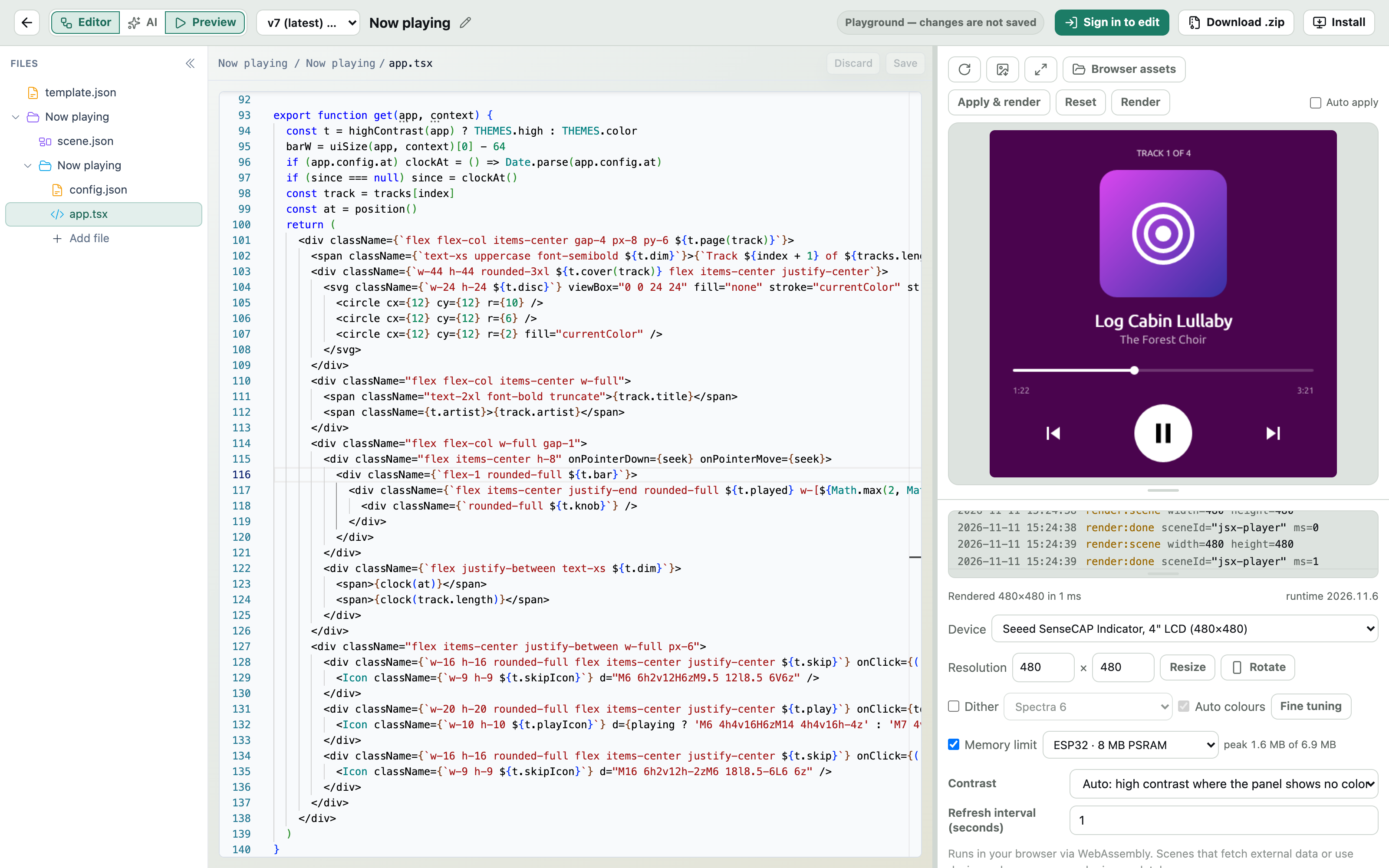
The scene AI draws this way too: anything a scene draws itself, it writes as an app.tsx returning
JSX, and the store's samples - Analog clock face, Word clock, Chess puzzle of the day, Day
agenda, Now playing, Home - are good ones to read.
Not there yet: rounded clipping, shadows, transforms, letter spacing, and selecting text in a field.
Permissions
What an app may do on the frame is listed in its config.json under permissions:
assets- read the frame's assets folder (listAssets,readAsset,loadAssetImage…);assets-write- also write and delete there (writeAsset,appendAsset,deleteAsset);filesandshell- for built-in apps: Local image reads any folder, Chromium screenshot and RTSP camera snapshot run programs.
You rarely write the list yourself: saving a scene fills each JavaScript app's list from its code. A scene asks for what its apps ask for, and every surface shows that as tags - reads assets folder, writes assets folder, reads all files, runs shell commands, and uses OpenAI key for each service key an app reads - on the scene list, in the drawer, on store tiles and in the install dialog. Installing a scene is approving its tags; Update to latest says which ones a new version adds and turns red when it gains shell, file or write access.
The frame enforces the lists: an app that asks for neither assets nor
assets-write gets a folder of its own, scenes/<sceneId>/ in the assets folder, for its asset
calls, and one with assets alone can't write. Caching a download with
fetchImage({ saveAsset }) needs no permission.
Built-in apps
The other built-in apps - text, images, QR codes, splits, gradients and the rest - are written in Nim and compiled into FrameOS itself, which is how a $15 Pi Zero 2 W stays fast. Use them on a diagram like any other node: add one, wire it up, set its fields. Their source opens read only; to make one do something else, write a JavaScript app.
Where each kind runs
| Raspberry Pi | ESP32-S3 | Pico W / ESP32-C3 | |
|---|---|---|---|
| Built-in apps | All of them | All but Chromium screenshots and RTSP | Rendered on the backend |
| Custom JavaScript apps | ✅ | ✅ | Rendered on the backend |
SVG, fonts and text
The render/svg app rasterises SVG markup - a very practical way to lay out a panel, especially
from a JavaScript app that generates the markup. <text> elements are typeset with the frame's
own fonts and drawn as outlines, so labels come out sharp at any size - no need to layer
render/text on top of an SVG for its labels. font-family is matched loosely against
the fonts on the frame - "PT Sans", PTSans-Bold.ttf and font-weight="bold" all land on
PTSans-Bold.ttf - and anything the frame doesn't have falls back to the built-in face rather than
failing the drawing. text-anchor, dominant-baseline, <tspan>, entities and stroked or
transformed text all work. FrameOS implements a subset of SVG rather than the whole spec: <defs>
and external references are ignored, a Pi holds at most eight typefaces per SVG, and on a
microcontroller SVG text always renders in the one built-in typeface.
On a Raspberry Pi you can upload your own TrueType fonts under the frame's assets and pick them in
any text or font field. Drop a NotoColorEmoji.ttf in there and it's used automatically as a
fallback for characters your font doesn't cover (SVG text excluded - color emoji are bitmaps with
no outlines). An ESP32 with an SD card can load TTFs from fonts/ on the
card too, one face at a time.
Photos
A photo library on the self-hosted backend and FrameOS Cloud - upload albums once, play them on any frame through a share link, grade them for the panel.
Big images on small devices
How FrameOS renders a 12-megapixel photo on a device with 8 MB of RAM - streaming decoders, bounded decodes, spooling and caching.